How to Speed Up Your WordPress Website (2026 Guide): 18 Proven Ways to Improve Performance
How can you speed up your WordPress website?
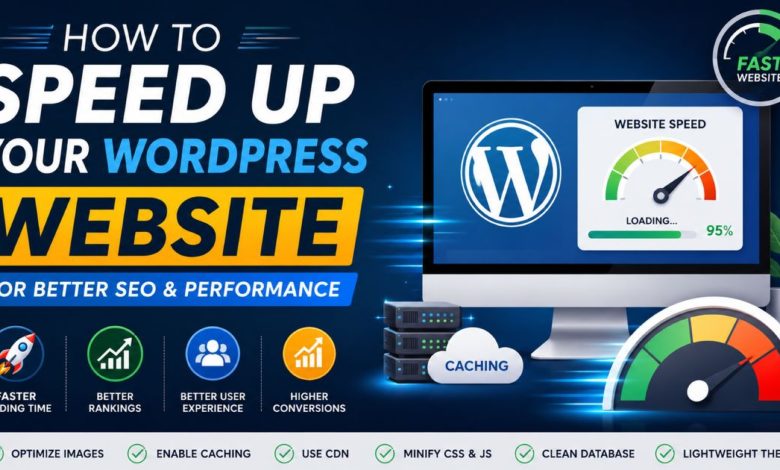
The fastest way to speed up your WordPress website is to use quality hosting, enable page caching, optimize images, minimize CSS and JavaScript, use a CDN, remove unnecessary plugins, enable lazy loading, optimize your database, and regularly update WordPress, themes, and plugins.
A slow website doesn’t just frustrate visitors—it also hurts your Google rankings, conversions, user experience, and revenue.
Studies consistently show that users expect websites to load within just a few seconds. Even a one-second delay can increase bounce rates and reduce conversions. Search engines also use page experience and Core Web Vitals as ranking signals, making website speed an important part of SEO.
The good news?
You don’t need to be a developer to build a fast WordPress website.
Whether you’re running a personal blog, affiliate website, business site, or WooCommerce store, a few smart optimizations can dramatically improve loading times.
In this guide, you’ll learn 18 proven ways to speed up your WordPress website, improve Core Web Vitals, and create a better experience for both users and search engines.
Why Website Speed Matters
Website speed affects much more than user satisfaction.
A fast website can improve:
- Search engine rankings
- User engagement
- Affiliate revenue
- Ad earnings
- WooCommerce sales
- Page views
- Conversion rates
- Crawl efficiency
A slow website often leads visitors to leave before your content even loads.
Google also rewards websites that provide a fast and smooth browsing experience, especially on mobile devices.
If you’re investing time in SEO, improving website speed should be one of your highest priorities.
1. Test Your Website Speed Before Making Changes
Before optimizing anything, understand your current performance.
Popular free tools include:
- Google PageSpeed Insights
- GTmetrix
- Pingdom Website Speed Test
- WebPageTest
Pay close attention to:
- Largest Contentful Paint (LCP)
- Interaction to Next Paint (INP)
- Cumulative Layout Shift (CLS)
- Time to First Byte (TTFB)
These Core Web Vitals help identify exactly what’s slowing down your website.
Record your scores so you can compare them after making improvements.
2. Choose High-Performance WordPress Hosting
Your hosting provider has the biggest impact on website speed.
Even a perfectly optimized website can’t overcome poor hosting.
Look for hosting that offers:
- LiteSpeed or NGINX servers
- NVMe SSD storage
- Built-in caching
- PHP 8.3+
- HTTP/3 support
- Free CDN integration
- Daily backups
Avoid extremely cheap shared hosting if your website receives significant traffic.
Quality hosting is one of the best long-term investments you can make.
3. Install a WordPress Caching Plugin
Caching creates static versions of your pages so visitors don’t have to wait for WordPress to generate each page dynamically.
Popular caching plugins include:
- WP Rocket
- LiteSpeed Cache
- FlyingPress
- W3 Total Cache
- WP Super Cache
Caching alone can significantly reduce loading times.
Many managed WordPress hosts also include server-level caching for even better performance.
4. Optimize Your Images
Images are usually the largest files on a webpage.
Uploading uncompressed images directly from your phone or camera slows every page.
Best practices include:
- Resize images before uploading.
- Compress images without noticeable quality loss.
- Use next-generation formats like WebP or AVIF.
- Serve responsive image sizes.
- Avoid uploading unnecessarily large files.
Image optimization often produces one of the biggest improvements in page speed.
5. Enable Lazy Loading
Lazy loading delays loading images and videos until visitors scroll near them.
Instead of loading every image immediately, only visible content loads first.
Benefits include:
- Faster initial page loads
- Reduced bandwidth usage
- Better Core Web Vitals
- Improved mobile performance
WordPress now includes native lazy loading, but many optimization plugins provide additional control.
6. Use a Content Delivery Network (CDN)
A CDN stores copies of your website across servers around the world.
Visitors download content from the nearest server rather than your origin server.
Advantages include:
- Faster global loading times
- Lower server load
- Better uptime
- Improved security
- Reduced latency
Popular CDN providers include Cloudflare, Bunny.net, and Amazon CloudFront.
Related: Is WordPress Dying? Here’s What’s Actually Happening
7. Minify CSS, JavaScript, and HTML
Every website loads multiple code files.
Minification removes unnecessary:
- Spaces
- Comments
- Formatting
- Line breaks
This reduces file sizes and improves download speed.
Many optimization plugins can automatically:
- Minify CSS
- Minify JavaScript
- Minify HTML
- Combine files where appropriate
Always test your website after enabling these features to ensure nothing breaks.
8. Remove Unused Plugins
More plugins don’t always mean slower websites.
Poorly coded plugins do.
Review your installed plugins regularly.
Ask yourself:
- Do I still use this?
- Does another plugin already perform this function?
- Is there a lighter alternative?
Removing unnecessary plugins reduces:
- Database queries
- PHP execution time
- HTTP requests
- Security risks
Quality matters far more than quantity.
9. Optimize Your WordPress Database
Over time, your database fills with unnecessary data such as:
- Post revisions
- Spam comments
- Expired transients
- Deleted content
- Plugin leftovers
Cleaning your database regularly improves efficiency and reduces server workload.
Many optimization plugins include automated database cleanup tools.
10. Keep WordPress Updated
Running outdated software affects both security and performance.
Regularly update:
- WordPress core
- Themes
- Plugins
- PHP version
Developers continually release performance improvements alongside security patches.
Updating everything helps your website run faster and safer.
11. Use a Lightweight WordPress Theme
Your WordPress theme affects every page on your website.
Some themes include hundreds of features, animations, fonts, sliders, and page templates that load unnecessary CSS and JavaScript—even on pages where they’re never used.
A lightweight theme loads faster because it contains cleaner code and fewer dependencies.
What to Look for in a Fast Theme
Choose a theme that offers:
- Clean, optimized code
- Mobile-first design
- Fast loading times
- Compatibility with page builders
- Regular updates
- Accessibility support
- SEO-friendly structure
Avoid themes packed with dozens of built-in page builders, animations, and demo content unless you truly need those features.
A lightweight foundation makes every other optimization more effective.
Related: How to Start a WordPress Blog: The Complete Beginner’s Guide
12. Reduce External HTTP Requests
Every third-party service your website loads adds extra requests.
Examples include:
- Google Fonts
- Facebook Pixel
- Google Analytics
- Ad networks
- Live chat widgets
- Social media embeds
- Marketing scripts
Each request increases loading time.
How to Reduce External Requests
- Remove scripts you no longer use.
- Delay non-essential JavaScript.
- Load analytics asynchronously.
- Host fonts locally whenever possible.
- Limit the number of advertising networks.
- Replace heavy social embeds with lightweight preview images.
Fewer requests mean faster pages.
13. Optimize Google Fonts
Many websites unknowingly load several font families and dozens of font weights.
For example:
- Regular
- Medium
- Semi-Bold
- Bold
- Italic
Each variation requires another download.
Best Practices
- Use only one or two font families.
- Load only the weights you actually use.
- Host fonts locally.
- Use font-display: swap.
- Remove unused font variations.
These small improvements can noticeably reduce page rendering time.
14. Enable GZIP or Brotli Compression
Compression reduces the size of website files before they’re sent to visitors.
Smaller files download much faster.
Most modern hosting providers automatically support:
- GZIP
- Brotli
If your hosting doesn’t enable compression automatically, many caching plugins can help.
Compression improves:
- HTML delivery
- CSS loading
- JavaScript loading
- Overall page speed
15. Optimize Core Web Vitals
Google uses Core Web Vitals to measure real-world user experience.
Improving these metrics benefits both SEO and usability.
Largest Contentful Paint (LCP)
Measures how quickly the main content becomes visible.
Improve it by:
- Faster hosting
- Better caching
- Optimized images
- Faster server response
- Using a CDN
Interaction to Next Paint (INP)
Measures how responsive your website feels when users interact with it.
Improve it by:
- Reducing JavaScript execution
- Removing unused plugins
- Optimizing scripts
- Delaying non-critical JavaScript
Cumulative Layout Shift (CLS)
Measures unexpected layout movement while a page loads.
Reduce CLS by:
- Setting image dimensions
- Reserving space for ads
- Avoiding content inserted above existing elements
- Loading fonts properly
Good Core Web Vitals help improve both rankings and user satisfaction.
16. Optimize WooCommerce Performance
If you run an online store, WooCommerce introduces additional database queries and scripts.
Fortunately, you can optimize it effectively.
Speed Tips
- Disable WooCommerce scripts on non-store pages.
- Optimize product images.
- Limit related products.
- Use object caching.
- Clean expired transients.
- Keep WooCommerce updated.
- Choose hosting optimized for ecommerce.
A fast checkout experience improves conversions and customer satisfaction.
17. Regularly Clean Up Your Website
Every few months, perform a website audit.
Review:
- Plugins
- Themes
- Images
- Database
- Broken links
- Redirects
- Unused media
- Old drafts
Removing unnecessary files keeps your website efficient over time.
Website speed optimization isn’t a one-time task—it’s an ongoing maintenance process.
18. Monitor Performance After Every Change
Never assume an optimization improved your website.
Always test before and after making changes.
Track:
- PageSpeed Insights score
- GTmetrix grade
- Core Web Vitals
- Load time
- Server response time
- Bounce rate
Small improvements often combine to produce dramatic performance gains.
Common WordPress Speed Mistakes
Avoid these common problems:
- Uploading huge images
- Installing too many plugins
- Ignoring updates
- Using cheap hosting
- Running outdated PHP versions
- Loading excessive fonts
- Using unnecessary animations
- Ignoring Core Web Vitals
- Installing multiple caching plugins
- Forgetting database maintenance
Avoiding these mistakes is often easier than fixing them later.
Frequently Asked Questions
Why is my WordPress website so slow?
Common causes include poor hosting, unoptimized images, excessive plugins, render-blocking JavaScript, database bloat, and missing page caching.
What is the fastest caching plugin for WordPress?
Popular options include:
1. WP Rocket
2. LiteSpeed Cache
3. FlyingPress
4. W3 Total Cache
5. WP Super Cache
The best choice depends on your hosting environment and website needs.
Does website speed affect SEO?
Yes.
Google considers page experience and Core Web Vitals when ranking websites. Faster websites also reduce bounce rates and improve user engagement, both of which support better search performance.
Should I use a CDN?
Yes, especially if your audience is spread across different countries. A CDN reduces latency by serving website files from servers closer to your visitors.
How often should I optimize my website?
Review your website every few months and whenever you install major plugins, change themes, or notice slower performance.
Final Thoughts
A fast website creates a better experience for everyone.
Visitors stay longer, browse more pages, trust your brand, and are more likely to subscribe, purchase, or return.
From an SEO perspective, improving WordPress performance helps search engines crawl your website more efficiently while supporting stronger Core Web Vitals and page experience signals.
The good news is that you don’t need to implement every optimization at once.
Start with the changes that have the biggest impact:
- Upgrade your hosting.
- Enable caching.
- Optimize images.
- Use a CDN.
- Remove unnecessary plugins.
- Minify CSS and JavaScript.
- Clean your database.
- Keep WordPress updated.
Then continue improving your website over time.
Remember, website speed optimization is an ongoing process—not a one-time project.
Every improvement, even small ones, contributes to a faster, more reliable, and more successful WordPress website.